Introduction
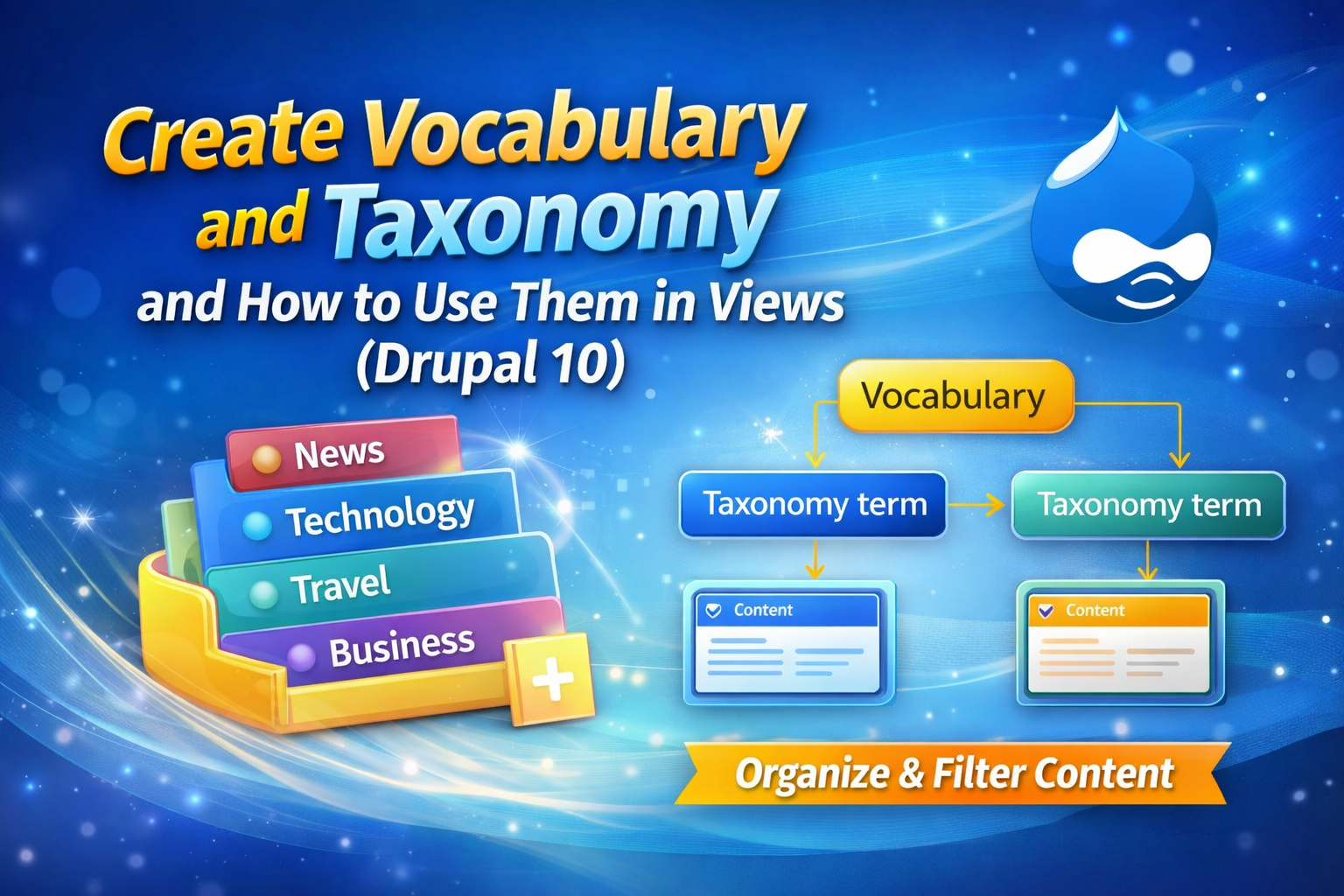
In Drupal, Taxonomy is a powerful core system used to classify, organize, and relate content. Taxonomy helps site builders group content using terms like Categories, Tags, Topics, Departments, etc. These terms are stored inside Vocabularies.
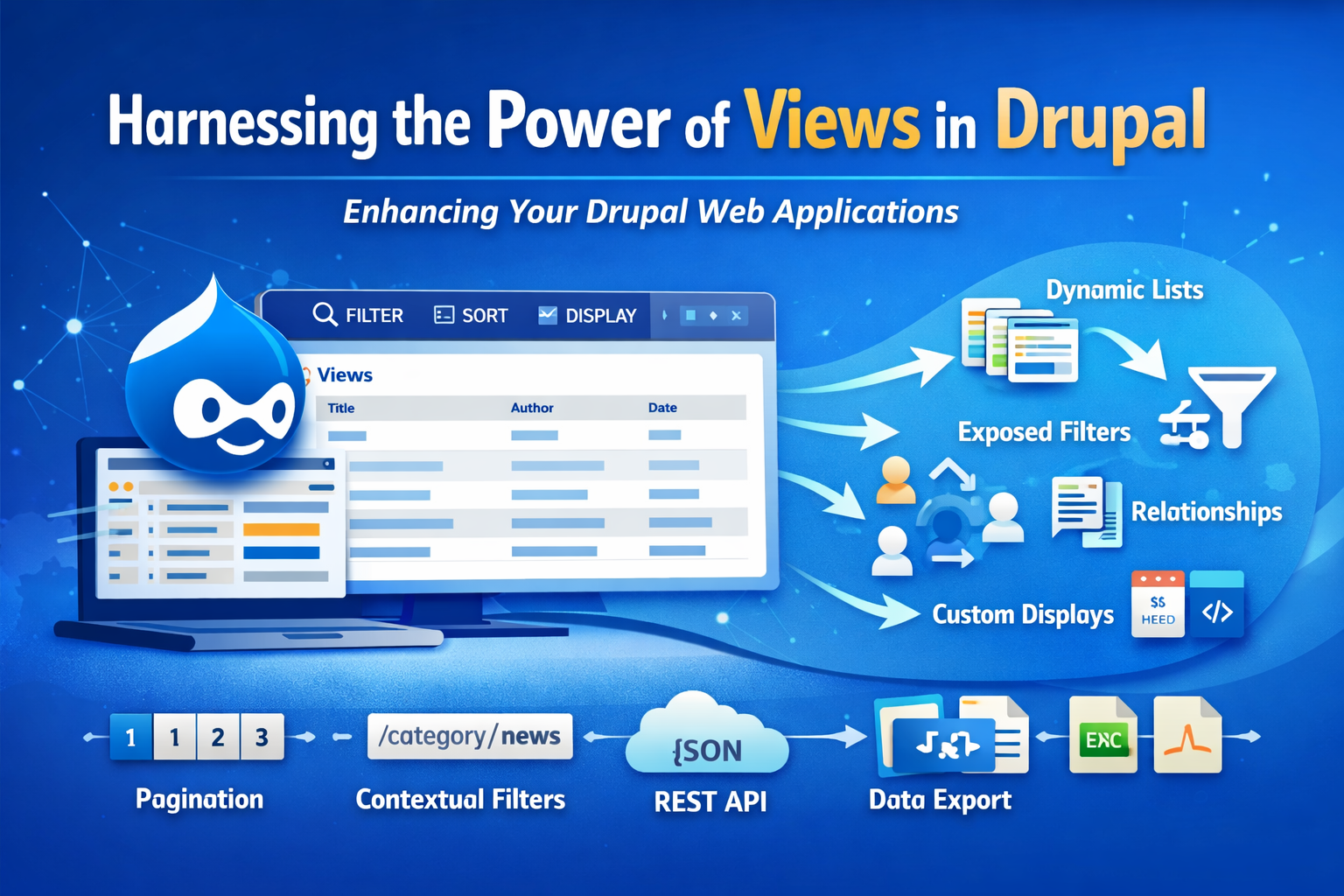
When taxonomy is combined with Views, it becomes extremely powerful. You can filter content, create category-wise listings, build dynamic pages, sliders, and much more.
This article explains:
- What taxonomy and vocabulary are
- How to create them in Drupal 10
- How to use taxonomy in content types
- How to use taxonomy in Views
What is Taxonomy in Drupal?
Taxonomy is a content classification system. It allows you to assign structured labels (terms) to content.
Examples:
- Blog categories: News, Technology, Education
- Tags: PHP, Drupal, JavaScript
- Departments: HR, IT, Finance
Each group of terms is stored inside a Vocabulary.
What is a Vocabulary?
A Vocabulary is a container that holds related taxonomy terms.
Example:
Vocabulary name: Categories
- News
- Sports
- Technology
Vocabulary name: Tags
- Drupal
- PHP
- CSS
Step 1: Create a Vocabulary in Drupal 10
- Go to Structure → Taxonomy
- Click Add vocabulary
- Fill the details:
- Name: Categories
- Description: Content categories for articles
- Click Save
The vocabulary is now created.
Step 2: Add Terms to Vocabulary
- Click List terms next to the vocabulary
- Click Add term
- Enter term name (example: News)
- Save
Repeat this step to add multiple terms.
Step 3: Attach Vocabulary to a Content Type
To use taxonomy, you must add it as a field to a content type.
- Go to Structure → Content types
- Click Manage fields for your content type (e.g., Article)
- Click Add field
- Select Reference → Taxonomy term
- Field label: Category
- Click Save and continue
Field Settings:
- Reference type: Taxonomy term
- Vocabulary: Categories
- Allowed number of values: 1 or Unlimited
Save the field.
Now editors can select a category while creating content.
Step 4: Create Content Using Taxonomy
- Go to Content → Add content → Article
- Enter title and body
- Select a Category term
- Save
Create multiple contents with different categories.
Step 5: Use Taxonomy in Views
Now we will use taxonomy to filter and display content using Views.
Example: Create Category-wise Article Listing
- Go to Structure → Views → Add view
- View name: Articles by Category
- Show: Content
- Content type: Article
- Create a page
- Save and edit
Step 6: Add Fields in View
Add the following fields:
- Content: Title
- Content: Body (optional)
- Content: Category (taxonomy field)
Step 7: Filter Content Using Taxonomy
- In the view, click Add under Filter criteria
- Choose Content: Category (Taxonomy term)
- Configure filter:
- Operator: Is one of
- Select terms (e.g., News)
- Apply
Now the view will show only content from the selected category.
Step 8: Contextual Filter (Dynamic Category Pages)
Contextual filters allow dynamic filtering based on URL.
Example: URL-based category page
- Add Contextual filter → Content: Category
- When filter value is NOT available: Display all results
- When filter value IS available: Filter by taxonomy term ID
- Save
Now URL like:
/articles/news
can dynamically load category-specific content.
Step 9: Taxonomy Relationships in Views
Sometimes taxonomy fields are not directly available.
- In Views, click Advanced → Relationships → Add
- Add Content: Category relationship
- Use taxonomy fields like Term name, Term ID, etc.
Step 10: Use Taxonomy for Menus and Blocks
Category Menu
- Create a View showing taxonomy terms
- Display as a block
- Place it in sidebar
Filter Block
- Use Exposed filters in Views
- Allow users to filter content by category
Benefits of Using Taxonomy with Views
- Structured content organization
- Easy filtering and sorting
- SEO-friendly URLs
- Dynamic category pages
- Reusable content listings
Best Practices
- Use separate vocabularies for different purposes
- Do not overload a single vocabulary
- Use machine names carefully
- Prefer taxonomy over free-text fields
- Combine taxonomy with Views for scalability
Conclusion
Taxonomy and vocabulary are core building blocks of Drupal content architecture. When used correctly with Views, they enable powerful, flexible, and scalable content presentation. Mastering taxonomy will greatly improve your Drupal site structure and user experience.